Step by Step tutorials to set up SMS & EMAIL OFFER Campaigns:
BBQ PORK PLATE CAMPAIGN: (click links to see each)
After the campaign is set up, do the following the evening prior to the offer going out:
1) Add the menu item to your POS Grid and update the price, if needed. (Square dashboard)
- STEPS: In Square Dashboard --> search in Item Library for “TODAY ONLY - BBQ PORK PLATE” and add to your LTO category
- There can be a delay when adjusting menu items / pricing in Square dashboard before it pushes online. It's best to do this the day prior.
- NOTE: if you search for a menu item in your Item Library and it’s not there, it’s likely archived. See instructions here for how to unarchive here.
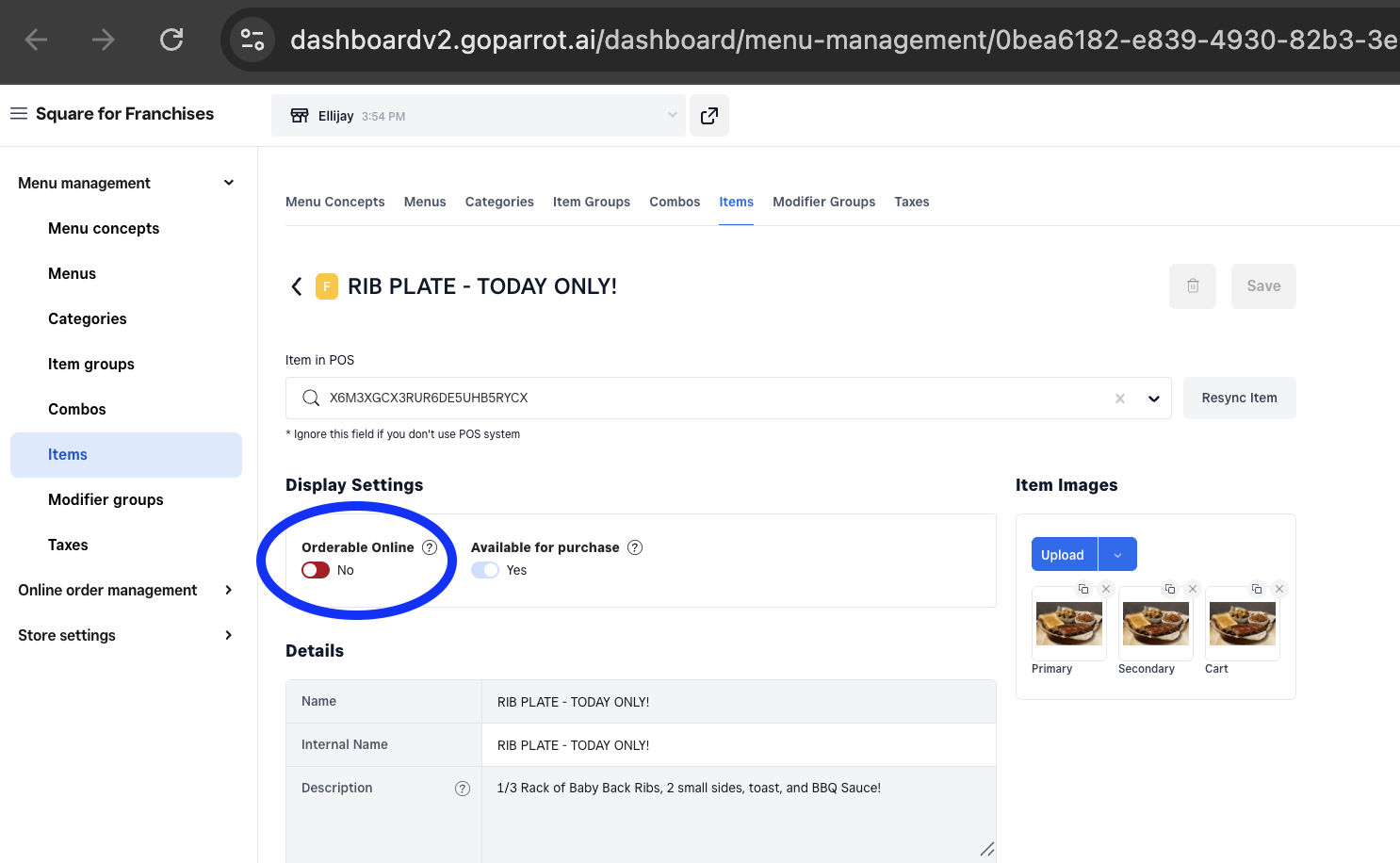
2) The day of the offer, enable the offer online / in-app.
- This is done in Franchise Suite (https://dashboardv2.goparrot.ai/). You’ll log in with your same user / pw as Square Dashboard
- STEPS: Menu Management --> Menus --> Central Menu --> Select the “Available for a limited time” category -> Select “TODAY ONLY - BBQ PORK PLATE” --> toggle on “Orderable Online”
______________________________________________________________________________________________
Here's another example campaign:
RIB PLATE CAMPAIGN -
- CREATE SMS CAMPAIGN
- CREATE EMAIL CAMPAIGN
- Add Menu Offer button to POS grid – search for “RIB PLATE – TODAY ONLY”
- Adjust price, if needed.
- Enable the offer in Franchise Suite so it will show up online & in-app. (instructions above)
Was this article helpful?
That’s Great!
Thank you for your feedback
Sorry! We couldn't be helpful
Thank you for your feedback
Feedback sent
We appreciate your effort and will try to fix the article