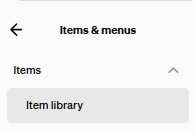
In Square Dashboard go to Dashboard/Items & Menus/Items/Item Library and search in Item Library for “MEGA MEAT MEAL - VALID TODAY ONLY!”
Enter Mega into the search bar
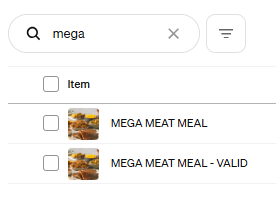
Once you verified the item is there go to Menus
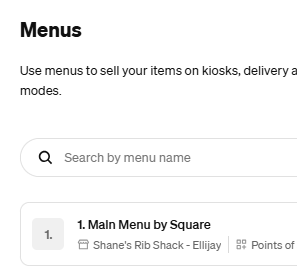
Click on the title of the Menu you use for your POS
Scroll down to desired category - "Limited Time Offer" and click on it to expand
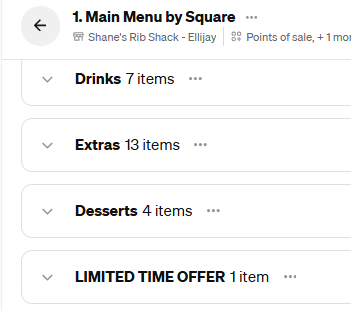
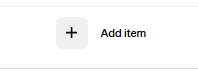
Click on Add Item to add to your LTO category
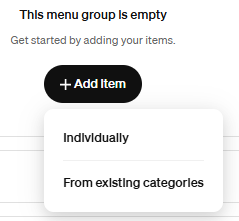
If the group is empty click on Individually and enter Mega Meat in search bar
If group is populated the item list will appear automatically
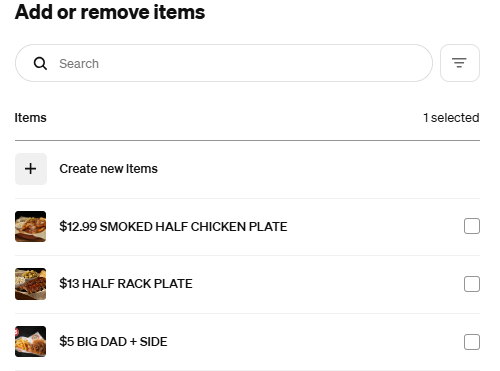
Select “MEGA MEAT MEAL - VALID TODAY ONLY!”
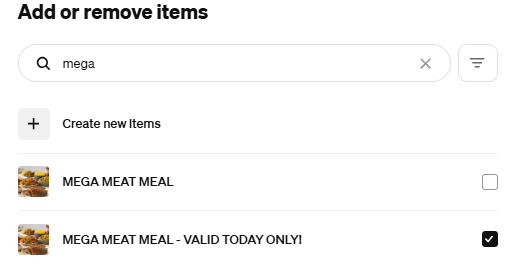
The item is now in the category
Click on Edit POS layout in the top right corner

Click on the group button Limited Time Only and then the arrow
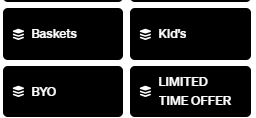
Verify that the Mega button is visible and in the location you prefer
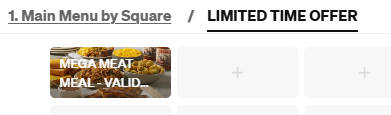
- The button is now ready for use!
NOTES:
- If you search for a menu item in your Item Library and it’s not there, it’s likely archived. See instructions here for how to unarchive here.
- Remember to add the menu item to your POS Grid and update the price, if needed. (Square dashboard)
Was this article helpful?
That’s Great!
Thank you for your feedback
Sorry! We couldn't be helpful
Thank you for your feedback
Feedback sent
We appreciate your effort and will try to fix the article