This is a 2 step process, first, the coupons have to be created in Square Dashboard for each location. Once these are created, the offer will need to be added to Ovation Dashboard.
THINGS TO KNOW:
- These coupons are valid in-store only
Since these coupons are built in Square Dashboard, the offer will only be valid at the stores associated with that Square account. These coupons are valid ONLY at the location who's Square Dashboard it was built from.
Coach FOH to make sure guest enters phone number when redeeming, this will prevent from being able to redeem offer more than once.
Step 1) Create coupon in sq dashboard
Step 2) Add Coupon in Ovation Dashboard
——————
1) Create in Square Dashboard
CUSTOMERS —> Marketing —> Coupons —> Create Coupon
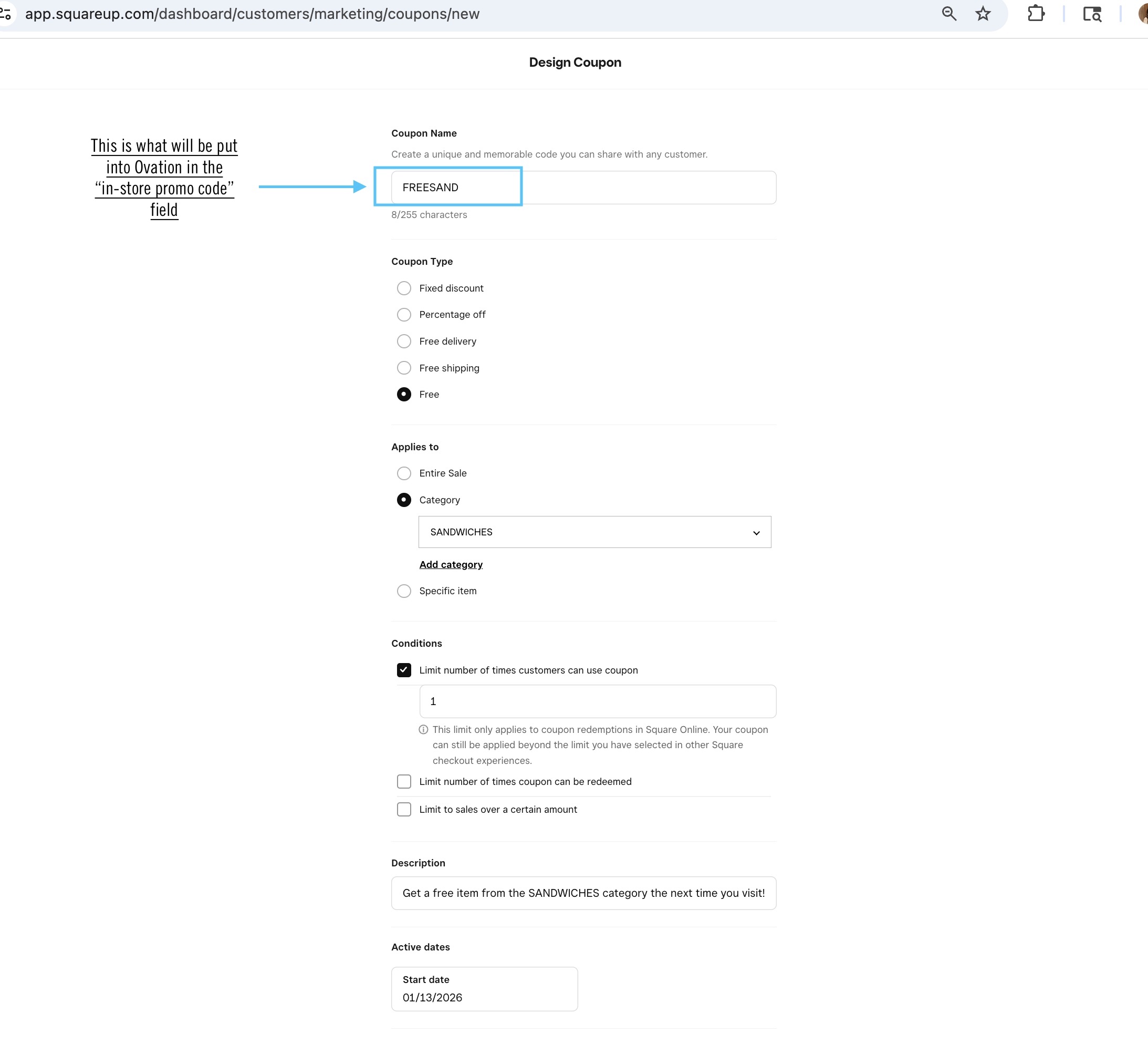
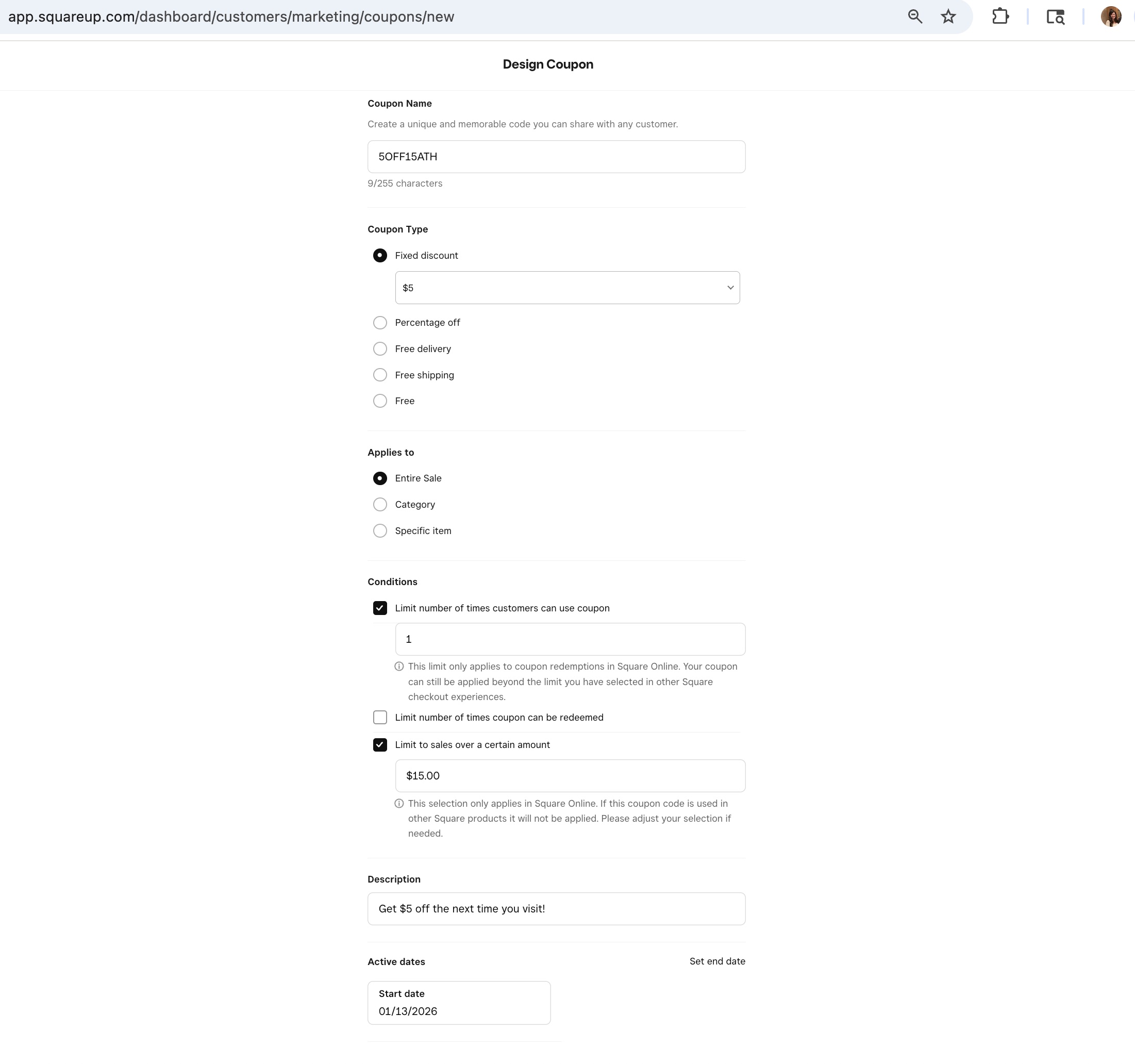
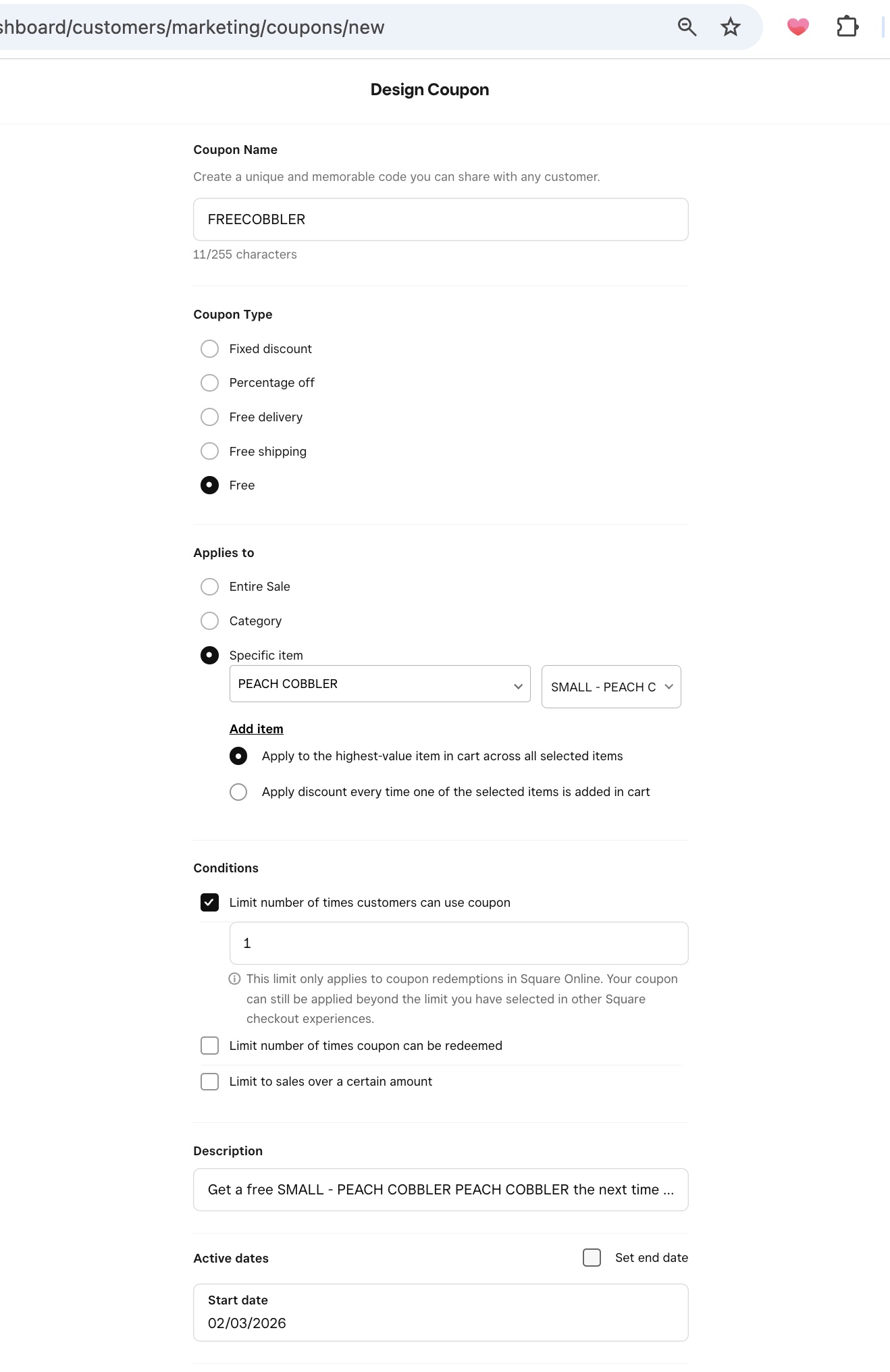
- Make sure to check the box for "Limit number of times customer can use coupon" and enter "1"
- Once created, can’t edit, so if need to make adjustments, deactivate and recreate - can use same promo code name
- These coupons are valid in-store only.
- Make sure guest enters phone number when redeeming, this will prevent from using it more than once.
(Ovation recommends we not set an expiration in Sq Dashboard since the Ovation coupon that is sent to guests will have the live the confetti and adds a 30 day expiration from the day it's sent to guest). A coupon can be deactivated in Sq. Dashboard at any time if needed.
"Free Sandwich" coupon (in sq Dashboard):
$5 OFF $15 coupon in Square Dashboard:
Example for Free Small Cobbler coupon in Square Dashboard:
2) Add coupon to Ovation Dashboard:
IN OVATION: https://app.ovationup.com/promos
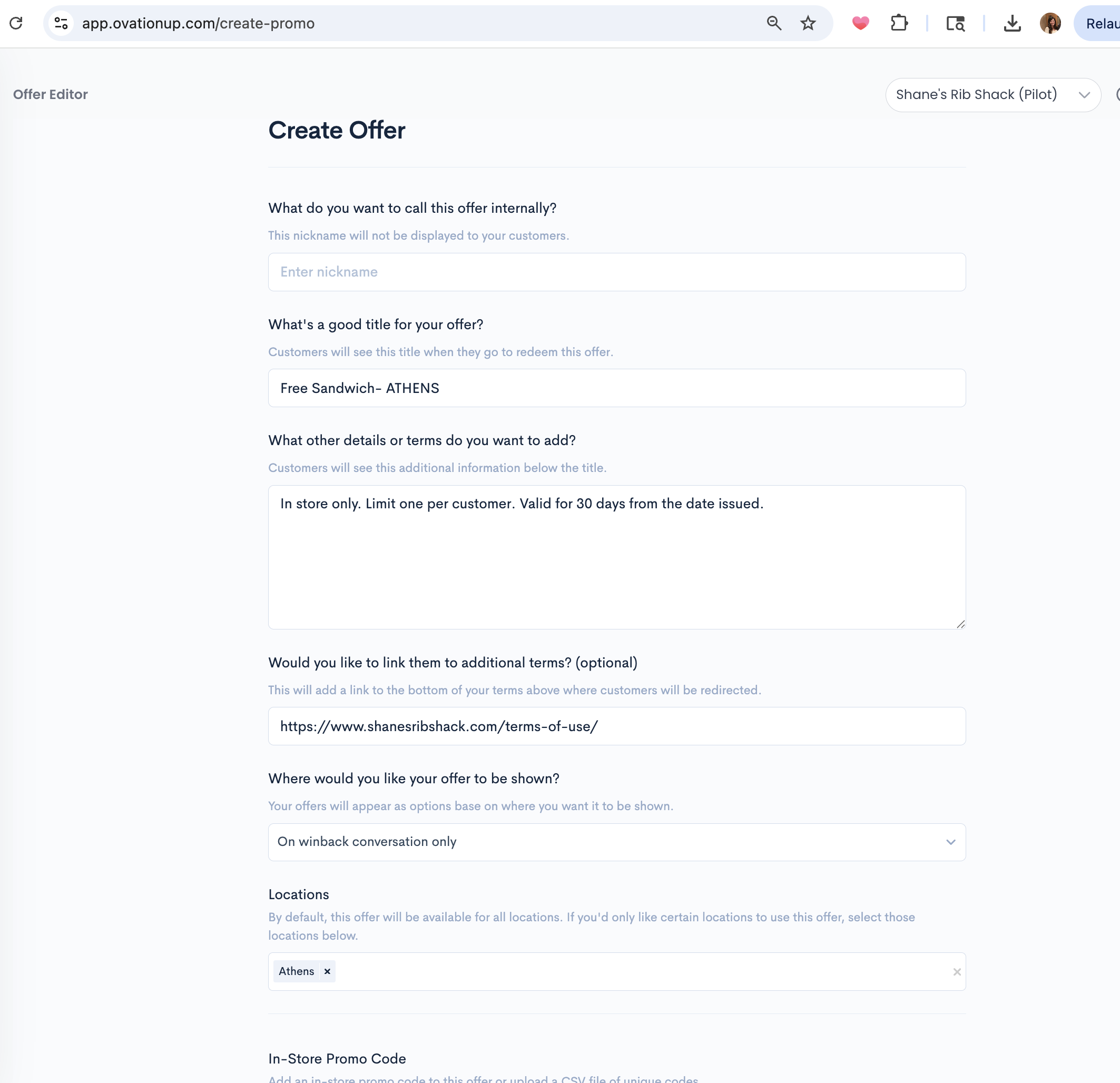
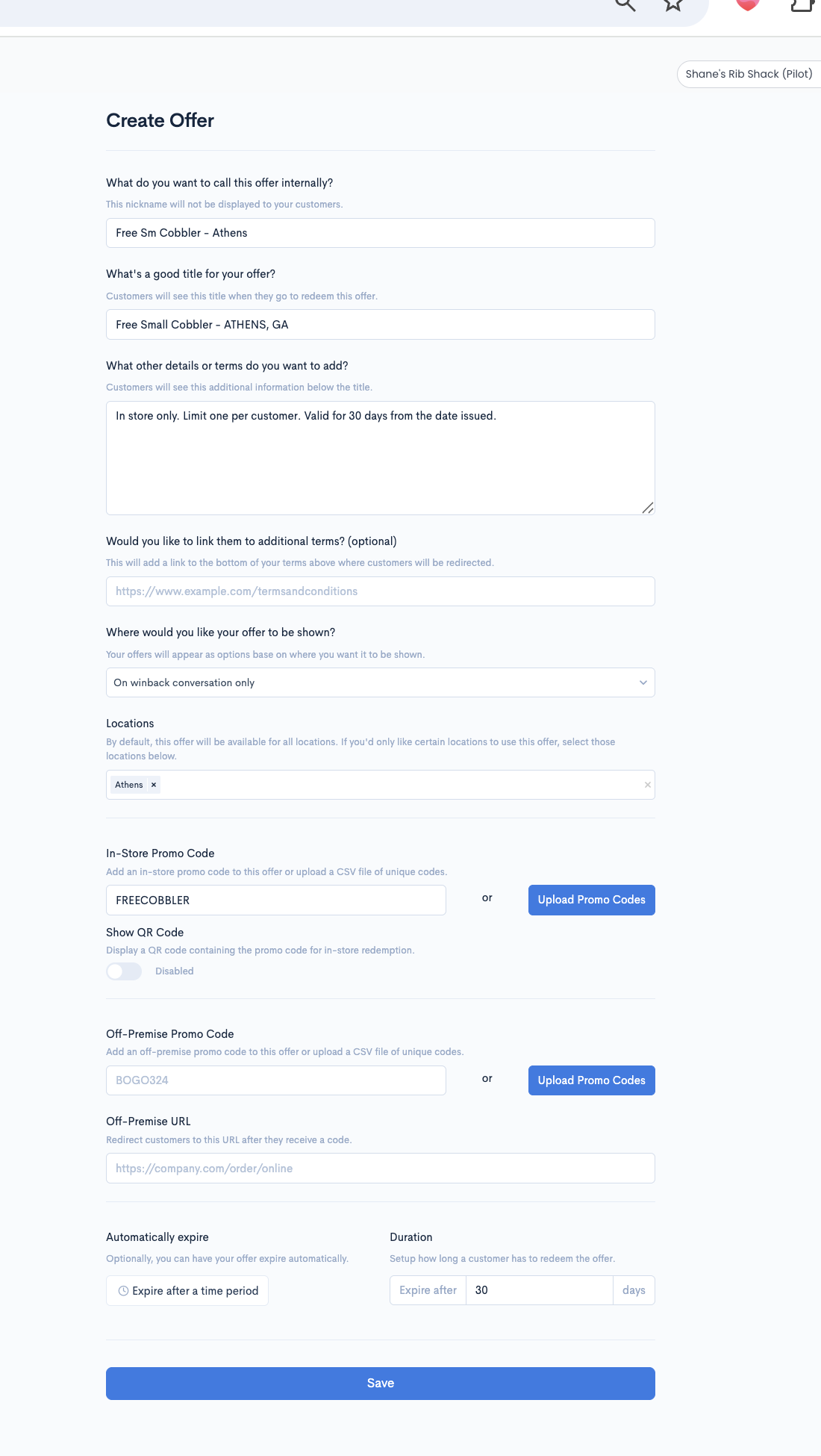
- NAMING CONVENTION: [offer - store location] —> EXAMPLE: “Free Small Cobbler - ATHENS, GA”.
- (This is what the customer will see, so no store #’s please)
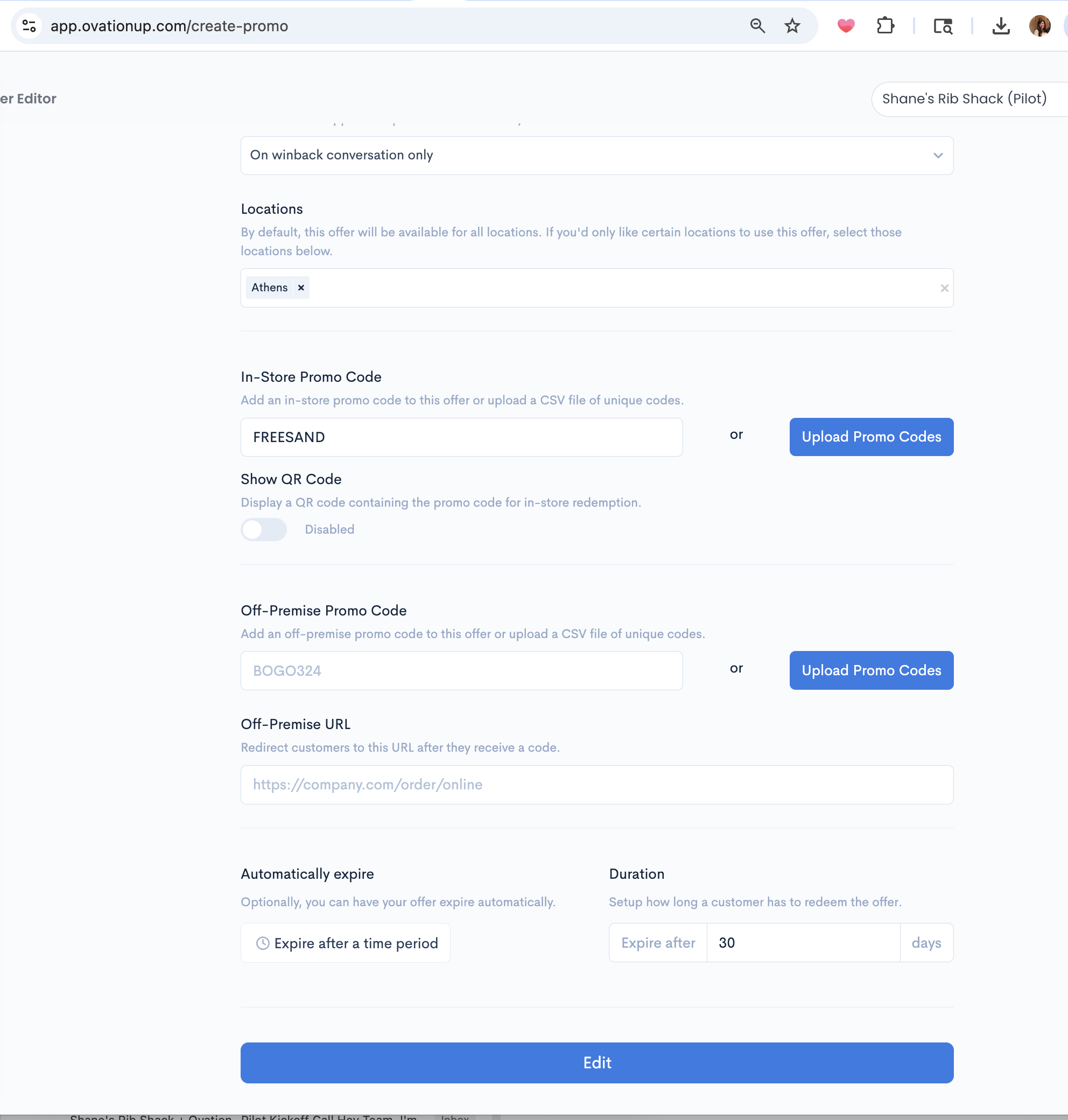
- Add this Description to all offers: “In store only. Limit one per customer. Valid for 30 days from the date issued.”
- Make sure to set "on winback conversation only" for "Where would you like your offer to be shown" field
- Example from Customer POV (screen recording) of how the coupons come through via Ovation dashboard with 30 day expiration: https://drive.google.com/file/d/109mnPYL_BoLfL52jixAcN0ed94-nNfI0/view
How to set up the "FREE SANDWICH" Square coupon in Ovation dashboard:
How to set up the "FREE SM COBBLER" Square coupon in Ovation dashboard:
Was this article helpful?
That’s Great!
Thank you for your feedback
Sorry! We couldn't be helpful
Thank you for your feedback
Feedback sent
We appreciate your effort and will try to fix the article