**Note - This setting only works if Square Scheduling is being used.
Customize schedule enforcement settings
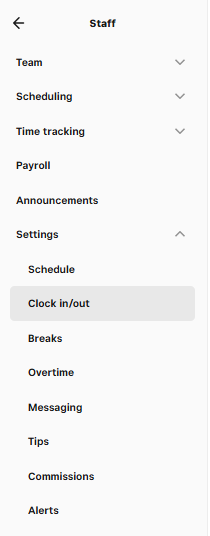
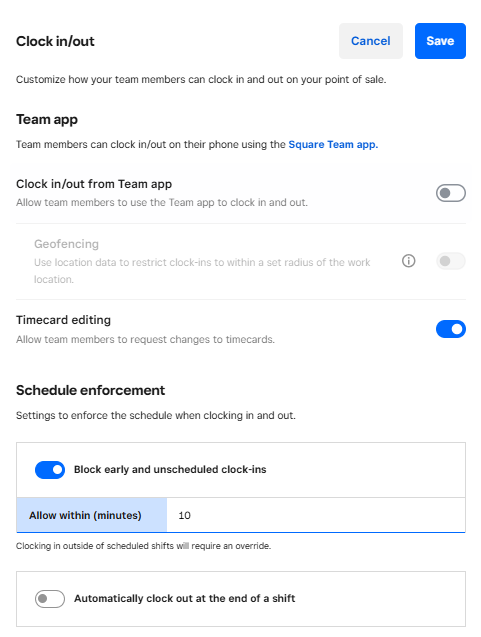
You can customize the clock in/out settings for team members from your Square Dashboard. You can allow them to clock in or out from the Square Team App, block early clock-ins, or set up auto clock out.
- To allow team members to clock in or out from the Square Team App, toggle on Clock in/out from Team app.
- To block early clock ins, toggle on Block early or unscheduled clock-ins and set an Allow within time limit. If you toggle on this setting, team members will receive a notification if they attempt to clock in outside of the time limit.
- To allow automatic clock-outs, toggle on Automatically clock out at end of shift, select Confirm, and set an After time limit.
- Select Save.
Was this article helpful?
That’s Great!
Thank you for your feedback
Sorry! We couldn't be helpful
Thank you for your feedback
Feedback sent
We appreciate your effort and will try to fix the article